


Typehulp
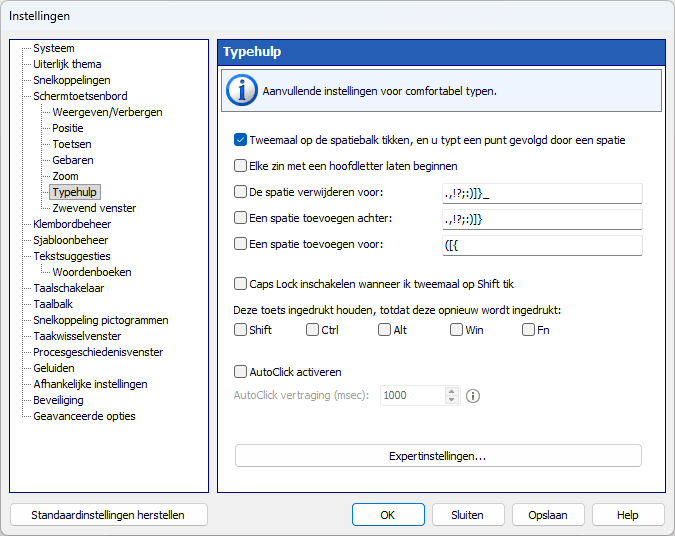
Extra functies voor comfortabel typen op het schermtoetsenbord.
Tweemaal op de spatiebalk tikken, en u typt een punt gevolgd door een spatie
U kunt een punt invoegen gevolgd door een spatie door tweemaal op de spatiebalk te drukken.
Elke zin met een hoofdletter laten beginnen
Als een van de opgegeven tekens wordt ingevoerd, wordt automatisch de Shift-toets ingedrukt.
Verwijder een spatie ervoor
Als een van de tekens op de lijst wordt ingevoerd en er staan spaties vóór dat teken, worden de spaties verwijderd.
Voeg daarna een spatie toe
Als een van de tekens uit de lijst wordt ingevoerd, wordt er na dat teken een spatie toegevoegd.
Voeg een spatie toe vóór
Als een van de tekens in de lijst wordt ingevoerd en er staat geen spatie vóór dat teken, wordt er een spatie voor toegevoegd.
Caps Lock inschakelen wanneer ik tweemaal op Shift tik
Dubbeltikken op Shift op het schermtoetsenbord zorgt ervoor dat deze ingedrukt blijft. Tik nogmaals op Shift om deze los te laten.
Houd Omlaag Shift, Ctrl, Alt of Win .totdat u opnieuw drukt
Wanneer u op een van deze modificatietoetsen drukt, blijft deze ingedrukt totdat u er opnieuw op drukt.
AutoClick activeren
Als u met de muis over een toets beweegt, wordt deze automatisch ingedrukt met het opgegeven interval tussen toetsaanslagen. Deze functie kan nuttig zijn voor personen met bepaalde handicaps.
AutoClick-vertraging (msec)
De tijd die verstrijkt voordat er een muisklik plaatsvindt, vindt plaats op de huidige positie van de muisaanwijzer.