Histórico de Versões
Versão 10.1.1 (lançada em 15 de outubro de 2026)
- Melhorado: O teclado virtual agora aparece automaticamente nos campos de entrada numérica (input type="number") do Google Chrome, do Microsoft Edge e de outros navegadores baseados no Chromium.
- Corrigido: No Windows 11 22H2 e em versões posteriores, o teclado de toque do Windows ainda podia aparecer automaticamente sobre o teclado virtual em tablets e telas sensíveis ao toque sem um teclado físico conectado.
- Corrigido: A janela flutuante do teclado virtual agora mantém, após uma reinicialização, a posição em que foi bloqueada.
- Corrigido: Em um monitor com escala da tela diferente, o teclado virtual com o tamanho fixado exibia as teclas fora do lugar, e o teclado e a janela flutuante mudavam de tamanho após uma reinicialização.
- Corrigido: A restauração de um backup pelo menu “Arquivo” do Gerenciador da Área de Transferência fazia a janela do gerenciador desaparecer e deixava o programa instável.
- Algumas outras correções de bugs e melhorias.
Versão 10.1 (lançada em 5 de outubro de 2026)
- Alterado: O cálculo do tamanho da fonte dos caracteres exibidos nos cantos das teclas do teclado virtual foi alterado.
- Corrigido: Com a opção “Digitar caracteres ao soltar as teclas” ativada e a opção “Habilitar a repetição de digitação” desativada, a tecla Win do teclado virtual agora é enviada junto com a tecla seguinte, em vez de ficar pressionada; assim, no Windows 11, o próximo clique não abre mais o Click to Do.
- Corrigido: Com a escala da tela em valores altos, a última palavra das Sugestões de Texto desaparecia quando o mouse passava sobre ela.
- Corrigido: Em telas sensíveis ao toque, o teclado virtual agora digita os caracteres assim que uma tecla é tocada, e não quando o dedo é levantado; além disso, os toques rápidos repetidos e o pressionamento contínuo de Delete ou Backspace voltaram a funcionar.
- Corrigido: Na janela “Configurações de atalhos de teclado”, selecionar Win, Ctrl, Shift, Alt ou Fn no teclado volta a atualizar as teclas, que passam a mostrar os ícones das ações atribuídas a essa combinação.
- Corrigido: Os arquivos de atalhos de teclado (.cka) salvos pela versão 9 ou por versões anteriores com determinadas configurações regionais agora são abertos, em vez de exibirem o erro “No mapping for the Unicode character exists in the target multi-byte code page”.
- Corrigido: O processo auxiliar oculto não continua mais em execução depois que o programa é fechado, e o instalador agora encerra os processos auxiliares remanescentes antes de atualizar ou desinstalar o programa.
- Corrigido: Os arquivos salvos na codificação ANSI pela versão 9 ou por um editor de texto não causam mais o erro “No mapping for the Unicode character exists in the target multi-byte code page”.
- Corrigido: O programa agora solicita direitos de administrador para as alterações que se aplicam a todos os usuários, em vez de ignorá-las sem nenhum aviso.
- Corrigido: A data na barra de status do Gerenciador da Área de Transferência não se sobrepõe mais ao campo seguinte e é atualizada quando o formato regional é alterado.
- Corrigido: A restauração de um backup dos Favoritos do Gerenciador da Área de Transferência criado pela versão 9 ou sem grupos não falha mais com um erro nem remove os grupos existentes dos seus Favoritos.
Versão 10.0 (lançada em 29 de setembro de 2026)
- Alterado: O Comfort Keys Pro agora se chama Comfort Keys Suite. O instalador remove os antigos atalhos “Comfort Keys Pro”, para que você não fique com dois ícones.
- Novo: A interface foi redesenhada no estilo do Windows 11, com visual claro ou escuro, conforme as cores do tema do teclado virtual. Os ícones da interface agora são vetoriais e monocromáticos, e a fonte da interface é a Segoe UI Variable (Segoe UI no Windows 10 e em versões anteriores).
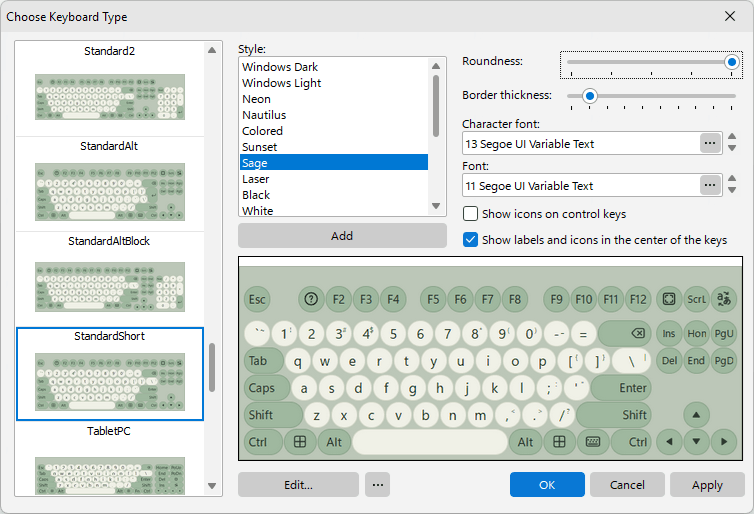
- Melhorado: Os temas “Windows Escuro” e “Windows Clara” foram reajustados para combinar com o visual do Windows 11, e o tema “Mac” foi redesenhado no estilo plano do Apple Magic Keyboard.
- Novo: Nove temas de teclado: Neon, Nautilus, Sálvia, Laser, Alto contraste, Branco, Entardecer, Retrô e Platina.
- Removido: Os temas de teclado desatualizados: Padrão, Escuro, Aqua, Vista, Dourado, Office Azul, Office Prata, Office Preto e Sistema. “Windows Escuro” agora encabeça a lista e é o tema usado por padrão. Se o seu teclado ainda usa um dos temas removidos, esse tema é mantido como um conjunto de cores personalizado, com o mesmo nome e as mesmas cores; apenas “Sistema” é trocado por “Windows Clara”.
- Alterado: A caixa de seleção “Cantos arredondados” foi substituída pelo controle deslizante “Arredondamento”, que vai de teclas quadradas a teclas totalmente redondas. Sua configuração anterior é mantida: as teclas arredondadas continuam arredondadas e as quadradas continuam quadradas até você mover o controle deslizante.
- Novo: O controle deslizante “Espessura da borda” (de 0 a 9) para as teclas do teclado virtual. A borda é desenhada para dentro, portanto as teclas mantêm o seu tamanho.
- Alterado: As teclas não têm mais preenchimento em degradê: o teclado virtual é desenhado inteiramente em estilo plano, e a configuração “Aspecto:” foi removida.
- Alterado: A tecla de idioma de entrada do teclado virtual agora mostra o código do idioma (ENG, DEU) ou o ícone do método de entrada, em vez de uma bandeira. Para trazer a bandeira do idioma de volta a essa tecla, marque a opção “Exibir a bandeira do idioma” nas configurações da ação de idioma de entrada.
- Alterado: Teclados virtuais renomeados: “UltraPhone1440” para “UltraPhone”, “TouchGame1” para “TouchGame”, “StandardAlt3” para “StandardAlt” e “Standard3” para “StandardShort”. Se um deles estava selecionado, a seleção passa automaticamente para o novo nome.
- Alterado: Estes teclados não são mais oferecidos: SkinWin7, TouchGame2, TouchGame3, SkinFlat, SkinMulticolor, SkinWhite, UMPC_Numx2000 e UMPCx2000. Eles continuam no disco, e o comando “Exibir Teclados desatualizados” da janela “Escolha do Tipo de Teclado” os traz de volta.
- Removido: Os teclados Circles, CirclesBig, FullScreen1024, MiniDemo, StandardBig e StandardBigAlpha.
- Melhorado: O teclado Mini foi totalmente redesenhado.
- Melhorado: As teclas de formato complexo, como a tecla Enter e as teclas inclinadas dos layouts para jogos, agora são desenhadas com contornos suaves, sem serrilhado. Nos teclados com plano de fundo transparente ou com imagem de plano de fundo, os contornos continuam sem suavização, como antes.
- Alterado: As linhas e os itens selecionados usam, em todo o programa, um único azul de destaque fixo, em vez de uma cor tirada do tema do teclado; isso combina melhor com os novos temas.
- Novo: O backup completo e a restauração dos dados agora fazem parte do programa. O botão “Backup de todos os dados...” da janela “Configurações” empacota as configurações junto com os arquivos de dados - teclados (inclusive os seus), ícones de teclas, planos de fundo, sons, dicionários, arquivos de atalhos de teclado, scripts, modelos e arquivos do Gerenciador da Área de Transferência - em um único arquivo .ckpack assinado, e o botão “Restaurar todos os dados...” os restaura a partir desse arquivo. A mesma tarefa pode ser automatizada em scripts com os parâmetros de linha de comando /SAVEPROFILE e /APPLYPROFILE. O arquivo é verificado antes de ser aplicado, e a restauração não está disponível na versão de avaliação.
- Melhorado: O Gerenciador da Área de Transferência foi reformulado: “Histórico” e “Favoritos” agora são nós de uma única árvore, e o gerenciador reabre no nó que você usou por último. A ação separada para os Favoritos e o seu atalho Alt+Insert deixaram de existir, mas os arquivos de atalhos de teclado mais antigos continuam funcionando.
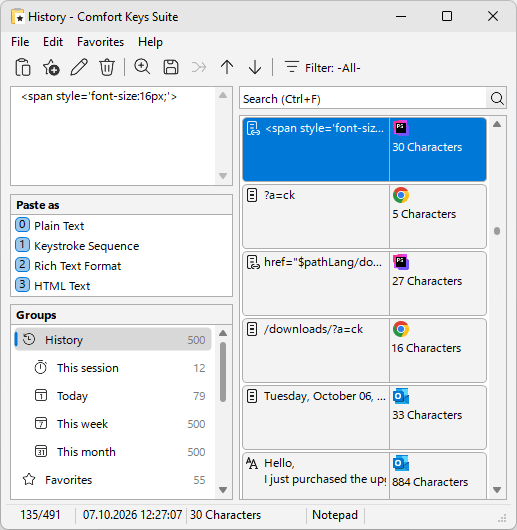
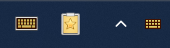
- Novo: Um ícone separado na Área de Notificação abre o Gerenciador da Área de Transferência com um único clique e mostra se o monitoramento da Área de Transferência está ativo. O ícone do programa na Área de Notificação e o ícone do Gerenciador da Área de Transferência podem ser ocultados de forma independente um do outro: “Ocultar o ícone do Gerenciador da Área de Transferência da Área de Notificação” é uma opção separada.
- Melhorado: O programa agora oferece suporte completo a Unicode: a interface funciona em qualquer idioma, e os dicionários das Sugestões de Texto podem estar em Unicode, em qualquer idioma.
- Novo: O teclado virtual agora pode ter teclas virtuais, que não estão vinculadas a nenhuma tecla física. Uma tecla virtual pode ser do tipo “Texto”, “Seletor de página” ou “Ação”. Uma tecla de ação é identificada pelo nome e obtém sua ação na lista geral de ações.
- Novo: O teclado virtual agora pode ter páginas adicionais além do layout base: clique em “Páginas...” no editor de teclado, adicione uma página, depois coloque no teclado uma tecla do tipo “Seletor de página” e indique a página que ela deve abrir. Uma página pode conter teclas de texto, símbolos ou um bloco adicional, como um teclado numérico. As teclas de texto de uma página sempre digitam o que mostram, seja qual for o idioma de entrada, enquanto o layout base continua acompanhando o idioma de entrada, como antes.
- Novo: A janela “Páginas” tem um botão que adiciona o modelo “&123”: duas páginas de símbolos, “1/2” e “2/2”, no estilo do teclado de toque do Windows 11. Elas repetem a geometria do layout base - a fileira de números se transforma em F1..F12 quando o layout não tem fileira de teclas de função, as fileiras de letras se transformam em teclas de texto, o Shift esquerdo se torna o seletor de página, e a tecla “abc” volta às letras.
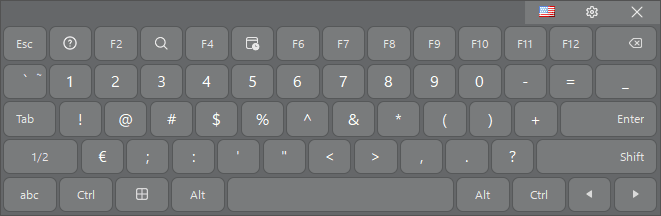
- Novo: Os teclados Mini, TouchScreen e TouchScreenWin8 agora vêm com as páginas de símbolos “&123”.
- Novo: As teclas do teclado virtual podem ter ícones SVG. O ícone fica armazenado dentro do próprio arquivo de teclado, de modo que o teclado continua sendo um único arquivo, sem arquivos de imagem separados, e o programa traz um conjunto de 102 ícones prontos.
- Melhorado: O editor de teclado foi modernizado: as teclas são selecionadas e redimensionadas com uma moldura de seleção que se ajusta automaticamente às teclas vizinhas e ao tamanho padrão de tecla, e os comandos “Recortar”, “Copiar” e “Colar” substituem o antigo comando “Clonar”.
- Melhorado: A janela “Cor / Imagem” foi reformulada: cada cor tem sua própria lista suspensa em uma grade com uma coluna para cada estado da tecla - “Normal”, “Destacado” e “Selecionado” - e colunas separadas para “Teclas de função” e “Teclas de controle”. A imagem da tecla também é escolhida ali, separadamente para teclas comuns, de função e de controle.
- Novo: Um teclado agora pode ter duas teclas com o mesmo código: quando você adiciona uma tecla cujo código já está em uso, o editor propõe criar uma segunda cópia da tecla, por exemplo, o Enter do teclado numérico. A cópia tem formato e aparência próprios, e a tecla da direita do par é tratada automaticamente como a estendida (no caso do Enter, é a tecla do teclado numérico), o que determina qual das cópias é destacada e qual código de varredura (scan code) é enviado.
- Novo: A lista “Se o teclado ocultar o cursor de texto” na página “Posição”: “Não mover”, “Afastar o teclado do cursor de texto” (o comportamento anterior, que continua sendo o padrão) ou de “Transparência 10%” a “Transparência 90%”, para que você veja o cursor através do teclado. O teclado permanece transparente enquanto o cursor estiver embaixo dele e volta à transparência normal assim que o cursor deixa de ficar coberto.
- Melhorado: As Sugestões de Texto agora fazem a correspondência entre letras com e sem sinais diacríticos: digitar uma letra simples também encontra palavras com as formas acentuadas dessa letra, enquanto digitar uma letra acentuada restringe a lista às palavras que realmente a contêm. Quando os dicionários não bastam para preencher a lista, ela é completada pelo corretor ortográfico do Windows (Windows 8 e posteriores); assim, para uma palavra digitada com erro, é oferecida uma correção em vez de nada.
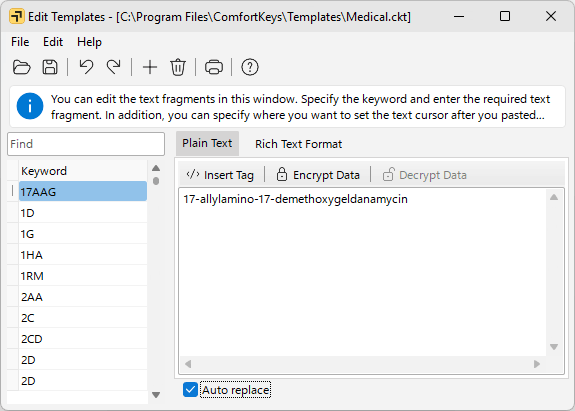
- Novo: As janelas “Configurações de atalhos de teclado”, “Editar modelos” e “Editar ícones de atalho” agora contam com os comandos Desfazer e Refazer (Ctrl+Z / Ctrl+Y).
- Melhorado: O programa agora reconhece o DPI de cada monitor: ele funciona corretamente em configurações com vários monitores em que as telas têm escalas diferentes, e as janelas e os ícones são redesenhados no tamanho certo quando a escala muda ou quando uma janela é movida para outro monitor.
- Melhorado: Os ícones de aplicativos usados nos atalhos de teclado foram totalmente redesenhados como imagens vetoriais, por isso permanecem nítidos em qualquer tamanho. Você também pode adicionar seus próprios arquivos PNG - de 16, 24 e 32 pixels, ou de apenas um desses tamanhos.
- Alterado: Os conjuntos de ícones de atalho agora usam o formato da versão 10, com a extensão “.csi”, e todos os conjuntos fornecidos com o programa foram reeditados nesse formato. Os conjuntos de versões anteriores (“.cki”) continuam abrindo como antes, mas nunca são sobrescritos, de modo que a versão 9 continua funcionando com eles.
- Novo: As teclas Enter, Tab, Caps Lock e Shift exibem um ícone em vez do nome quando o nome não cabe na largura da tecla. Com a nova opção “Exibir ícones nas teclas de sistema” ativada, o ícone é sempre exibido.
- Novo: A opção “Exibir símbolos acessíveis com AltGr”, que mostra o caractere de terceiro nível no canto inferior direito da tecla.
- Novo: A opção “Alinhar nomes das teclas de sistema à borda esquerda ou direita”: os nomes e os ícones das teclas de sistema que ficam nas extremidades das fileiras (Tab, Caps Lock, Shift, Ctrl, Enter, Backspace) são posicionados junto à borda externa do teclado, como no teclado de toque do Windows 11. Após a atualização a partir da versão 9, a opção fica desativada até que você a ative.
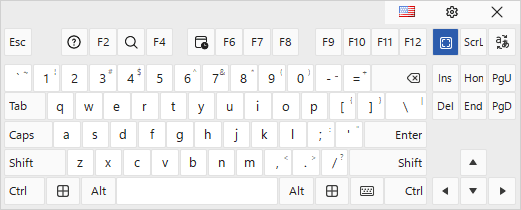
- Melhorado: Uma tecla que envia um atalho de teclado (Ctrl+O, Ctrl+Shift+Tab) em vez do seu próprio pressionamento agora mostra a tecla de destino em tamanho grande, no centro, e os modificadores em uma única linha pequena, no canto inferior esquerdo. O rótulo é desenhado nas cores da tecla, e não sobre um quadrado preto, como antes.
- Alterado: “Opacidade” agora se chama “Transparência” em toda a interface, e o rótulo “Nenhuma” deu lugar a “Transparente”. Os controles deslizantes vão de “0%”, à esquerda, a “Transparente”, à direita, e todas as listas de porcentagens indicam a transparência. Suas configurações salvas não foram alteradas.
- Novo: A janela “Dependência” tem uma nova opção, “Teclado Virtual: Transparência 50%”, logo depois de “Teclado Virtual: Fixar na parte inferior da tela”: o teclado fica 50% transparente enquanto o programa para o qual a dependência foi definida estiver em primeiro plano, e a sua transparência habitual volta assim que você muda para outro programa.
- Alterado: A caixa de seleção “Três toques com o dedo na tela: Exibir/Ocultar” foi substituída pela lista “Para mostrar o teclado, toque na tela com”: escolha de 3 a 10 dedos, ou “(Nada)” para desativar o gesto. Se a caixa de seleção antiga estava marcada, o gesto é mantido com três dedos.
- Novo: A opção “Afastar o teclado do menu Iniciar” na página “Posição”: enquanto o menu Iniciar está aberto, o teclado se afasta e volta ao seu lugar assim que o menu é fechado.
- Melhorado: As janelas “Editar tipo de teclado”, “Editar ícones de atalho” e “Configurações de atalhos de teclado” não pausam mais o programa: o teclado virtual continua disponível enquanto elas estão abertas, seus atalhos de teclado continuam funcionando sempre que nenhuma dessas janelas está em primeiro plano, e as alterações salvas aparecem imediatamente no teclado em uso.
- Novo: O campo “Localizar” acima da lista na janela “Configurações de atalhos de teclado”, que filtra a lista pelo nome da tecla, pelo atalho, pela descrição da ação e pelo rótulo que você mesmo definiu.
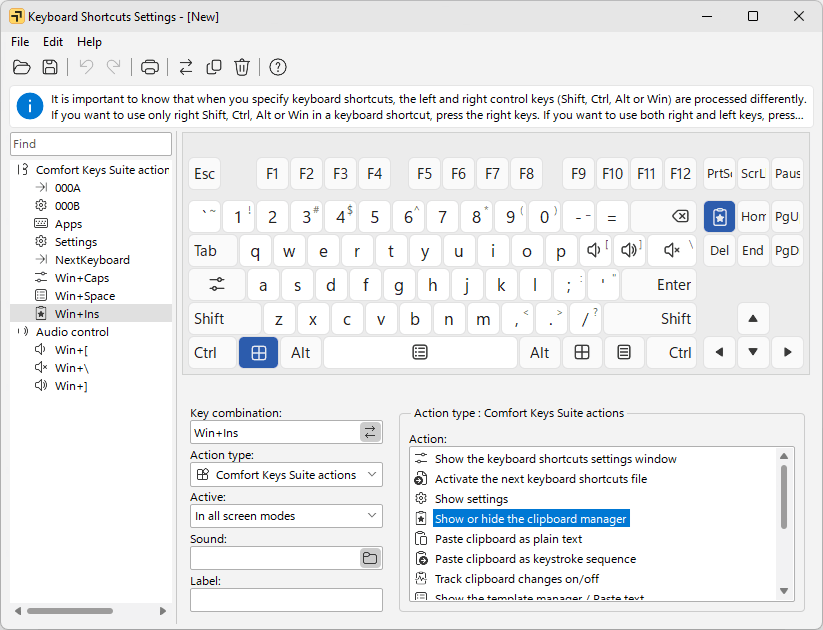
- Novo: O campo “Localizar” acima da lista na janela “Editar modelos”, que filtra os modelos pela palavra-chave e pelo texto.
- Melhorado: Caracteres especiais como # $ / \ não interrompem mais a palavra-chave de um modelo durante a digitação: agora uma palavra-chave só é encerrada por um espaço, por aspas (retas ou tipográficas) ou por um dos caracteres . , ! ? ; ) ] }. O programa também avisa quando a própria palavra-chave contém um desses caracteres de encerramento, porque um modelo assim não pode ser inserido por digitação.
- Melhorado: Na janela “Gerenciador de modelos”, quando nenhuma palavra-chave corresponde ao que você digitou (a partir de três caracteres), o programa agora mostra todos os modelos cujo texto contém o trecho digitado.
- Alterado: A área de visualização do Gerenciador da Área de Transferência agora fica sempre visível: a opção “Exibir prévia” e o seu botão na barra de ferramentas foram removidos.
- Novo: O Gerenciador da Área de Transferência tem dois comandos de manutenção, disponíveis apenas por atalhos de teclado: Shift+Ctrl+Alt+Del apaga os arquivos de fragmentos aos quais nada mais se refere, e Shift+Ctrl+Alt+R reconstrói as entradas ausentes do histórico a partir dos arquivos de fragmentos que ainda estão no disco.
- Alterado: O bloqueio das configurações para quiosques agora é uma política aplicada a todo o computador: o parâmetro “AccessDenied” é lido primeiro em HKEY_LOCAL_MACHINE\SOFTWARE\Policies\ComfortSoftware\CKeys, e só quando esse valor está ausente ou é igual a 0 o programa recorre à chave do usuário, usada anteriormente; assim, um usuário padrão não consegue mais desbloquear um quiosque a partir do seu próprio ramo do registro. Os arquivos AccessDenied.reg e AccessAllowed.reg fornecidos com o programa agora definem o valor da política e exigem direitos de administrador para serem importados, e o AccessAllowed.reg também remove o antigo valor do usuário.
- Alterado: Com as configurações bloqueadas (AccessDenied), a janela do Gerenciador da Área de Transferência não pode mais ser arrastada pela tela, e não é possível adicionar novos modelos de texto pela janela “Gerenciador de modelos”.
- Removido: Ações obsoletas: a janela de alternância de tarefas, a lista de programas abertos recentemente e “Exibir a Área de Trabalho”.
- Removido: O grupo de ações “Conectar/desconectar de rede” e a ação “Abrir/fechar a gaveta do CD”.
- Melhorado: Os arquivos de atalhos de teclado agora registram cada ação pelo nome, além do número, de modo que os arquivos continuam compatíveis quando uma ação é removida ou uma nova é adicionada.
- Removido: A opção “Adicionar o comando de criação de atalhos ao menu de contexto do Windows” e a extensão de shell do Explorador de Arquivos associada a ela.
- Alterado: O utilitário auxiliar separado COptions.exe deixou de existir: o próprio programa executa as operações que exigem direitos de administrador e solicita a elevação de privilégios quando necessário.
- Melhorado: Os dicionários das Sugestões de Texto agora são lidos na codificação do seu próprio idioma, seja qual for a página de código do sistema ou o layout de teclado atual; assim, um dicionário escrito para outro idioma não aparece mais com caracteres ilegíveis, e os dicionários salvos em UTF-8 também são aceitos. Os dicionários de hebraico e de norueguês receberam uma marca de idioma, como todos os outros, e por isso são escolhidos de forma confiável para o idioma em que você está digitando.
- Melhorado: O dicionário de hebraico das Sugestões de Texto cresceu de cerca de 4.500 para cerca de 470.000 palavras, e foi adicionado um novo dicionário de árabe, com cerca de 39.000 palavras.
- Novo: Duas opções na página “Sugestões de texto” da janela “Configurações para especialistas”, ambas ativadas por padrão: “Ignorar sinais diacríticos ao procurar Sugestões de Texto” e “Usar o corretor ortográfico do sistema para as Sugestões de Texto”.
- Corrigido: O funcionamento com janelas de navegador em tela inteira (F11): com a opção “Ancoragem” ou “Move e dimensiona a janela ativa” ativada, uma janela do Chrome em tela inteira agora é reduzida para dar espaço ao teclado, em vez de ficar coberta por ele, e a barra de tarefas não cobre mais o teclado.
- Corrigido: A ação “Suspender” em notebooks modernos: agora ela suspende o computador da mesma forma que o menu de energia do Windows, com retomada instantânea, em vez de colocá-lo em hibernação. O nome da ação também foi corrigido: “Pôr o sistema em estado de espera” agora se chama “Suspender”.
- Corrigido: Com a escala da tela em 125% e 150%, os rótulos das opções na janela “Configurações” e o texto dos painéis informativos apareciam cortados. Agora os rótulos se expandem para acomodar o texto e, onde não há espaço suficiente, terminam com “...” e mostram o texto completo em uma dica.
- Corrigido: As janelas de mensagem e de confirmação cortavam textos longos. Agora o texto é quebrado em linhas e a janela aumenta para acomodá-lo.
- Corrigido: Os tamanhos das janelas e dos painéis, incluindo as posições dos divisores, agora são salvos junto com a escala da tela, de modo que as janelas e os painéis são restaurados no tamanho correto em uma tela com escala diferente.
- Corrigido: O teclado virtual agora consegue digitar na caixa de diálogo “Mesclar os Fragmentos de Texto Selecionados” do Gerenciador da Área de Transferência.
- Corrigido: Duas falhas do menu dos ícones da Área de Notificação: pressionar um atalho de teclado que abre uma janela enquanto esse menu está aberto não trava mais todos os menus do programa, e o menu não pisca mais nem reabre sozinho após cliques repetidos com o botão direito em um dos ícones.
- Corrigido: A impressão da lista de modelos: os modelos de texto formatado (RTF) e os protegidos por senha ficavam totalmente de fora da impressão. Agora eles são listados com uma marca, o conjunto inteiro é impresso mesmo quando o campo de pesquisa está filtrando a lista, e a seleção não se perde mais após a impressão.
- Corrigido: Um problema de segurança e estabilidade nos componentes do teclado virtual usados na tela de logon do Windows (também corrigido na versão 9).
- Corrigido: Vários vazamentos de memória e de recursos; com isso, o programa ocupa menos memória em sessões longas.
- Corrigido: Em computadores sem acesso à internet (em geral com Windows 7), o instalador agora instala a cadeia completa de certificados de assinatura de código, de modo que o Windows consegue verificar as assinaturas e todos os componentes são iniciados.
Version 9.6.2 (released June 3, 2026)
- Improved language detection for text suggestions
- Fixed an error when adding items with a URL to Favorites in the Clipboard Manager.
- Fixed an error when setting an item's color in the Clipboard Manager.
- Fixed an issue when switching languages if the list included Japanese, Chinese, or Korean.
- Fixed an issue with text suggestions for the Polish language.
Version 9.6 (released May 15, 2026)
- Improved: Hotkeys and templates files can now be stored on a network folder (for example, OneDrive) and synchronized across devices.
- New: Added ToggleKeyboard.exe and ToggleClipboard.exe files to the main program folder, which can be pinned to the taskbar for quick access to the Clipboard Manager and on-screen keyboard.
- Improved: The on-screen keyboard now appears in Google Chrome and Microsoft Edge for certain ComboBox input fields (for example, the Google search box).
- Improved: If Data\CommonSettings.ini exists, settings are now saved to this file.
- Improved: If Data\LogonSettings.ini exists, logon keyboard settings are now loaded from this file.
- New: A Refresh command (F5 hotkey) has been added to the Clipboard Manager. This helps when clipboard file changes cannot be tracked in a network folder - press F5 to reload data manually.
- New: Added the LogonTransparent setting to control logon keyboard transparency.
- New: MoveBottomKB.exe now supports bottom offset in either pixels or percent (for example, MoveBottomKB.exe 250 or MoveBottomKB.exe 10%).
- Improved: The last state of control keys is now restored after using the "Replace key or shortcut" action.
- Improved: The "Disable system touch keyboard and handwriting panel" setting has been refined.
- Improved: Updated duplicate detection logic in the Clipboard Manager.
- Improved: When saving multiple fragments from the Clipboard Manager, the program now asks for a separator (same behavior as when merging fragments).
- Improved: Refined UI translations across multiple locales.
- Improved: Added localized help for Spanish, German, French, and Italian.
- Improved: Input language order now follows the order defined in Windows settings (also fixes switching with system language shortcuts).
- Fixed: In the Clipboard Manager, when saving a clip to a file, the file extension now updates correctly after changing the file type.
- Fixed: Emoji icons in templates may become corrupted when loading old template files.
- Fixed: Corrected automatic assignment of the F11 key when it is available through Fn key.
- Fixed: Corrected key interception from invalid keyboard sources (including Alt+F4 handling).
- Some other bugfixes and improvements.
Version 9.5 (released May 17, 2022)
- New: Scheduled check for updates has been added: Settings > Advanced > Check for Updates.
- New Gestures Ctrl+Key and Alt+Key have been added.
- New expert settings have been added:
- Shift, Ctrl, Alt, or Win key remains pressed if held down for less than 500 milliseconds;
- Additional key border to define the active key;
- Hold down Arrow keys until pressed again;
- Hold down Any key until pressed again.
- Improved: The on-screen keyboard shows characters accessible via Shift if they were added using the Paste Text action.
- Improved: The procedure for determining full-screen windows for calculating the location of the on-screen keyboard has been improved.
- Improved: The list of hidden windows appears as a separate submenu in the popup menu with all actions and in the main context menu.
- Improved: The "Don't move the mouse when touching the on-screen keyboard" expert setting is enabled by default. The setting has been greatly improved.
- Improved: The new fragment copied to the clipboard becomes active in the history of the clipboard manager if no filter is set.
- Improved: The print dialog automatically appears when you print the action list or template list.
- Fixed: Saving images to the clipboard from Google Chrome has been fixed.
- Fixed: Clipboard tracking stopped if the History section was empty and the "Do not add identical fragments" setting was unchecked.
- Fixed: All text templates stopped working if you canceled the processing of a text template with the Esc key.
- Fixed: The logon keyboard appeared in the upper left corner if you set "Don't move" in the "Default position" section.
- Fixed: The issue of the disappearance of the program icon in the system tray has been fixed.
- Lots of other fixes and improvements.
Version 9.4 (released May 28, 2021)
- Changed: The initial setup wizard has been redesigned. Now it appears only the first time you start the program.
- Improved: The size of the keyboard in the "Edit shortcut icons" window is set to the size of the main on-screen keyboard.
- Improved: Handling of active input languages has been improved.
- Improved: The information message describing the triggered hotkey has been improved.
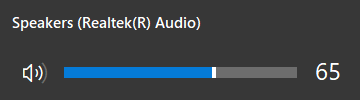
- Improved: The volume information window has been improved. See also: Audio control actions
- Improved: The "Move the on-screen keyboard to a screen border" setting has been replaced with the "Default position" setting. See also: Position settings
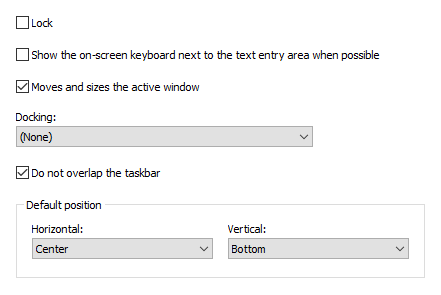
You can change this setting for any keyboard in the "Edit Keyboard Type" window. So your keyboards will have different positions on the screen when you switch between them.
The keyboard position changes even if the Lock setting is set.
- Changed: The two on-screen keyboard settings "Changes the position of the active window" and "Changes the size of the active window" have been merged into one "Moves and sizes the active window" setting. See also: Position settings
- Improved: The on-screen keyboard with the "Moves and sizes the active window" option enabled can now resize maximized windows.
- Improved: The Docking setting for the on-screen keyboard now works correctly for web browsers (Chrome, Firefox, Edge) in kiosk mode and full screen mode.
- Changed: The "Do not overlap the taskbar" setting has been moved from the expert settings to the Position section of the main settings. The taskbar is taken into account when moving the keyboard to the edge of the screen if this setting is enabled.
- Changed: Now the Ctrl-Alt-Del button is not shown by default above the keyboard on the logon screen in Windows 10. You can force this button to be shown using the ShowCAD parameter.
- Improved: New key label templates have been added based on the "Segoe MDL2 Assets" font in the "Edit Keyboard Type" window.
- Now you can use the <INPUT> tag in text templates and the Paste Text action. This tag adds the ability to enter text from the keyboard that will be inserted into the text template.
- Changed: The automatic snapping to the edge of the screen when changing the screen resolution has been removed.
- Improved: An additional request has been added to re-encrypt the database if the encryption and decryption password has changed. When using a shared clipboard directory on multiple PCs, you only need to re-encrypt the database on one of them.
- Improved: The clipboard manager displays a favorite icon if a clip is added to a favorites group.
- Improved: The "Keyboard shortcuts" filter has been added in the clipboard manager. With this filter you can find all the clips for which you have previously set a keyboard shortcut for quick paste.
- Improved: The handling of clipboard changes has been optimized.
- Improved: The "Do not add identical fragments" function has been improved. If you disable it, fragments after pasting are added to the top of the list.
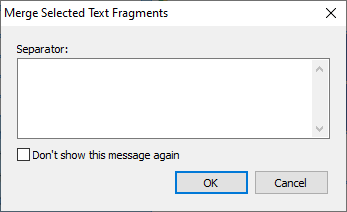
- Improved: A new form has been added to request a separator when merging selected text fragments.
- Fixed: When using Copy, no more music can be played with Sound Forge Audio Studio. Fragments of sound are not tracked in the clipboard, because this leads to errors in the OS.
- Fixed: An issue with the Japanese keyboard (106/109 key) layout has been fixed.
- Some other bugfixes and improvements.
Version 9.3 (released March 27, 2021)
- New keyboard types: Narrow, NarrowExtra, NarrowFunction.
- New: You can assign the "Paste text" action with one symbol to Shift+Key hotkey, and this symbol will be visible in the corner of the key.
- A new "The taskbar is taken into account when moving the keyboard to the edge of the screen" expert setting has been added.
- A new Javascript function "ChangeLanguage" has been added. Now you can change the input language in the web browser, using the onscreen keyboard functions.
- New: Persian interface language has been added.
- Improved: The rendering of text and icons in the "Task Switching Window" and "Process History Window" on High DPI screens has been improved.
- Improved: The on-screen keyboard typing in Chinese and Japanese has been improved.
- Improved: The on-screen keyboard now appears when DateTime Pickers are focused.
- Improved: The expert "Highlight the keys on the on-screen keyboard when you lift your finger" setting now works for the physical keyboard as well.
- Improved: You can type the © character by holding down the C key.
- Changed: If multiple monitors are connected and the AccessDenied parameter is set to 2 or 3, then you can move the on-screen keyboard to any monitor.
- Fixed: The search field now remains active when typing with the on-screen keyboard in Microsoft programs: Outlook, Word, Visual Studio, etc.
- Fixed: The appearance of the keyboard settings window when working with multiple monitors has been fixed.
- Some other bugfixes and improvements.
Version 9.2 (released March 5, 2020)
- New "Windows Light" style has been added. The "Windows 10" style has been renamed to "Windows Dark". Some styles have been slightly modified.
- New ability to select a zoom from 100% to 800% in the keyboard edit window has been added.
- New "Word wrap" option for the text template editor has been added.
- New keyboard shortcut icons for Windows 10 have been added.
- New command line parameter /EVENTLOG has been added. It instructs the application to create different log files for every startup.
- Improved: The "Windows 10 style" setting has been changed by "Rounded corners" setting. The rounding of the keys increases according to the zooming of the keyboard.
- Improved: Support for Uncode text in the text templates has been improved.
- Improved: The "Shift+Key" action has been added to the swipe down gesture.
- Improved: The "Temporarily hide the keyboard when a system window is visible in Windows 8 and above" setting is not set by default.
- Fixed issue with double letter entry when typing with fingers on the screen.
- Fixed: Sometimes identical fragments appeared in the clipboard manager.
- Fixed incorrect separator when saving several fragments to a text file in the clipboard manager.
- Fixed some memory leaks.
- Lots of other fixes and improvements.
Version 9.1 (released May 2, 2019)
- New: Japanese interface language has been added. Almost all user interface languages have been improved.
- New: The Ctrl+Backspace hotkey has been added to the Text Suggestion window, which allows you to delete the last added word.
- New: An additional key automatically appears next to the left Shift key for the on-screen keyboard, if the additional key is present in the language layout. The extra keyboard files have been removed.
- New: The right Shift key of the on-screen keyboard now displays a special label for the Chinese layout.
- New: The necessity of double clicking for the right Shift key has been removed for the Chinese layout.
- New: Turning on the Caps Lock with the right Shift key has been removed for the Chinese layout.
- New: Additional keys now appear next to the space bar for Korean and Japanese.
- New: The Additional Information setting has been added for the clipboard manager. You can select which information will be shown for every clip: Size, Date&Time or Source.
- New: The "Settings" button has been added to the clipboard manager.
- New: For HTML snippets, the source information has been added to the preview area of the clipboard manager.
- New: Added support for jpg, png, gif and bmp to show in "Filter: Pictures" when you have right clicked on a picture and clicked on "Copy picture" in browser, mail or any other program that can display pictures.
- New: The "URL" filter has been added that shows all clips that start with "http://", "https://" or "ftp://".
- New expert settings have been added:
- Show enlarged icons on the on-screen keyboard, if possible
- Hold down the key when it's double-clicked
- Hide the keyboard when this device is found
- Move the mouse after clicking the floating icon
- Improved: Expert settings have been divided into groups.
- Improved: Detection of the Web site icon for the "Open URL" action has been improved.
- Improved: Support for English dictionaries and text templates has been added to Korean, Chinese and Japanese.
- Improved: The label on the Enter key is now different when Chinese Simplified is active.
- Improved: The function of displaying hieroglyphs next to the Latin letters on the on-screen keyboard has been improved.
- Improved: For console applications, the on-screen keyboard now always appears if the "Show the keyboard when the text cursor is visible" option is set.
- Improved: The launch of the program has been accelerated.
- Improved: The label on the AltGr key now depends on the input language.
- Improved: The sorting of actions in the Keyboard Shortcuts Settings window and in the popup menu in the system tray have been changed.
- Improved: When you switch the on-screen keyboard, its location does not change.
- Improved: The "Keyboard Shortcuts Settings" window now scales the on-screen keyboard when necessary.
- Improved: A wider border for the keys is drawn if the screen scale exceeds 200%.
- Improved: An additional check has been added that prohibits the launch of multiple instances of the program.
- Improved: The ability to create a new keyboard or delete a keyboard has been added to the keyboard selection window.
- Improved: In the clipboard manager, you can edit clips and enter group names using the on-screen keyboard.
- Improved: The Data Directory for the clipboard manager can be shared among multiple users. When data is changed by one user, the data is updated for other users. You can also use a shared network folder, or a service like Google Drive or Microsoft OneDrive.
- Improved: The label "Name:" has been removed for named clips.
- Improved: The preview area of the clipboard manager window now depends on the screen scale.
- Improved: When you resize the clipboard manager window, the size of the buttons can reduce to show all the buttons.
- Fixed: The issue when working with Unicode text templates has been fixed.
- Fixed: After adding a new keyboard, it now appears in the list of keyboards for selection.
- Fixed: Now the context menu does not appear for the floating icon and the floating window if the AccessDenied option is activated.
- Fixed issues when typing in Windows 10 using a stylus.
- Fixed: Unicode text is now supported when using the tag.
- Fixed: The touchscreen is now detected, even if the system only has single-touch touchscreen.
- Fixed: Some issues with the Text Suggestions window have been fixed.
- Fixed the issue when editing text clips in the clipboard manager: a space was inserted after the first letter.
- Lots of other fixes and improvements.
Version 9.0.4 (released January 11, 2018)
- Improved: The Windows touch keyboard is restored when the software is uninstalled, if it was disabled by "Disable system touch keyboard and handwriting panel" option.
- Improved: "Capitalize the first letter of each sentence" setting disables for Chinese, Japanese, Korean, Hebrew, and some other languages.
- Improved: "Capitalize the first letter of each sentence" setting disables in password fields.
- Some minor improvements.
Version 9.0 (released December 7, 2017)
- New design and new icons.
- New styles have been added: Windows 10, Colored, Android. Order of styles has been changed.
- Improved: The window for selecting the type of keyboard has been improved.
- Improved: Almost all on-screen keyboards have been improved.
- Improved support of High DPI Displays on devices like Microsoft Surface, when "Size of text, apps, and other items" is more than 200%.
- Improved: The "Auto Hide" button has been replaced with the "Settings" button.
- Improved: The "Close" button and the caption have been increased for large screen resolutions.
- New keyboard types: MiniTouch, KioskWeb, KioskSpecial
- Improved: Many settings have been moved to new places.
- New section "Show/Hide" for the on-screen keyboard has been added.
- New "Show only when you click or tap a text box" setting has been added.
- New "Use all uppercase letters when I double-tap Shift" setting has been added.
- Improved: "Set capital after" setting has been replaced by "Capitalize the first letter of each sentence" setting. Now this setting can recognize empty input field. The work in the Spanish language has been improved.
- New "End state" setting for "Auto Hide" feature has been added.
- New: "Hide the on-screen keyboard when typing on a physical keyboard" setting now hides the keyboard when you attach "Cover Keyboard". If your attachable keyboard doesn't hide the on-screen keyboard, please contact our support team.
- New: Now you can use , tags for "Open URL" and "Run program" actions. For example: https://translate.google.com/#fr/en/
- New "Working In Background" kind of option "Type of URL opening" has been added for "Open URL" action.
- New folder with Gamepads for computer games has been created. All rarely used keyboards have been moved to the "Outdated" folder. You can add and remove Outdated keyboards and Gamepads from the keyboard list using the menu items in the keyboard selection window.
- Improved: Sounds "Quiet" has been improved and refined.
- Improved: The operation of the on-screen keyboard with various combinations of settings has been thoroughly refined.
- Improved: The switching of the input language has been improved.
- Improved: The UWP app definition in Windows 10 to create dependencies has been improved.
- Improved: New options have been added to the Dependencies setting.
- Improved: "Word Autocomplete" setting has been renamed to "Text Suggestions". "Text Suggestions" feature has been improved.
- New "Align Text Left" setting for the Text Suggestions.
- Improved: If a word is not found, the Text Suggestions window is highlighted in color.
- Improved: Blinking the "Text suggestions" window has been removed.
- Improved: The Docking function now works faster.
- Improved: The on-screen keyboard stores position for every screen resolution.
- New action for a click on the system tray icon: "Turn On / Turn Off"
- Improved: Five keys work like character keys: 0088=",;", 0089=".:", 008A="?!", 008B="-@", 008C="@-".
- Improved: Now key combinations like Fn+1 work correctly with Ctrl, Alt and Shift control keys. For example: Fn+Alt+4 => Alt+F4.
- Improved "Show the on-screen keyboard next to the text entry area" setting. If two monitors are connected and the text cursor is not defined, the keyboard will appear next to the mouse cursor.
- Improved stability of the program on slow computers.
- Improved some shortcut icons.
- Improved: "Advanced keyboard settings" window changed by "Expert" window. All extended settings have been moved to Expert window.
- Improved: "Repeat delay" and "Repeat rate" settings have been moved to the Expert window.
- New expert settings have been added:
- Highlight the keys on the on-screen keyboard when you lift your finger,
- Show hieroglyphs for Asian languages on keys,
- Temporarily hide the keyboard when a system window is visible in Windows 8 and above,
- Temporarily hide the keyboard when the Start Menu is visible in Windows 10,
- Hide the keyboard when you swipe it down,
- Maximum number of lines in the Text Suggestions.
- New Javascript functions have been added: "Move to center", "Capitalize the first letter".
- Fixed: Now the clipboard manager is displayed next to the text cursor when necessary.
- Fixed: Now the clipboard manager is hidden on the login screen in Windows 10.
- Fixed problems when typing using a stylus in Windows 10 Fall Creators Update (Version 1709).
- Fixed an issue with the Text Suggestions window in WhatsApp software.
- Fixed an issue with computer restart.
- Lots of other fixes and improvements.
Version 7.5 (released February 2, 2017)
- Improved Windows 10 Compatibility.
- Improved: The Info window displays the Label from the action settings, if the label is not empty.
- Improved: The command line for the "Run program" action now supports all environment variables like %windir%, %ProgramFiles%, %USERPROFILE%, %APPDATA%, %TEMP%, etc.
- Improved: Right clicking on the item in the clipboard manager makes the clicked item active.
- Improved: The "Paste as HTML Text" action in the clipboard manager now supports multi-language text.
- Improved Dutch language interface.
- Fixed issue with double letter entry when typing with the stylus or pen.
- Fixed issue with computer restart.
- Some other bugfixes and improvements.
Version 7.4 (released October 29, 2015)
- Improved Windows 10 Compatibility.
- New "Swap keys" action has been added in the keyboard editor.
- New keyboard types: UltraPhone, UMPCx2000, UMPC_Numx2000, and TouchScreen1024.
- Changed keyboard type: TouchScreen.
- Removed keyboard type: UltraPhone640.
- New "Word Autocomplete: Add space after completed word" option has been added to the list of dependencies.
- New: Slovenian interface language has been added.
- New extended options:
- Hide the on-screen keyboard when a physical keyboard is present.
- Prevent the mouse cursor from moving when you touch the on-screen keyboard in Windows 8 and above.
- Block system keys and hotkeys like Alt+F4, Win, Alt+Tab, Ctrl+Alt+Del, etc.
- Minimum height and Minimum width.
- Changed the order of words in the word autocomplete window based on the statistics.
- Changed the icon on the Win key.
- Improved the response rate when using the keyboard with the touchscreen.
- Fixed: Microsoft Edge has been added to the list of web browsers.
- Fixed: Alternate symbols for number keys didn't work correctly sometimes.
- Fixed: The on-screen keyboard didn't disappear with the hide gesture sometimes.
- Many other fixes and improvements have been made.
Version 7.3 (released April 17, 2015)
- This release includes improved performance, bug fixes, and some redesigned keyboards. Changes include:
- New "Single line" option for the clipboard manager. This option lets you display rows in the list of clips in a special way: Each row will become smaller in height and will contain only one line.
- New: Users can now add new colors for saved fragments in the clipboard manager.
- Improved the Search box in the clipboard manager. When you start typing, the search begins automatically. When you are finished with the search, you can clear the search by pressing Esc key.
- New "Changes the position of the active window" and "Changes the size of the active window" options have been added. If the active window is under the keyboard, app moves it in view.
- New ability to change icon for the on-screen keyboard in the system tray, the toolbar, the floating window, and floating icon. See new "Icon" field in "Theme" section.
- New "Transparent background" options for the Floating Window and the Floating Icon have been added.
- New "Three finger tap on your touchscreen: Show/Hide" option has been added. Note: Windows 8 and above.
- Improved: The on-screen keyboard better displays some Arabic and Hebrew vowels.
- New 12 flags for languages have been added.
- Improved: Installed keyboards depend on the input languages.
- New "Sort alphabetically" option for the word auto-complete feature has been added.
- The word auto-complete feature has been improved.
- New "Terminate the active program" action in "Window control" section has been added.
Version 7.2 (released December 2, 2014)
- New: The order of words in the word autocomplete window depends on the statistics accumulated by application. The application initially has predefined data on word frequency and word order for the most popular languages. These data are stored in the Common subfolder. When you type any text, the application memorizes the words that you use, so that later it can place the most frequently used ones in the beginning of the list. Which words are suggested also depends on the previously typed text.
- New: The ability to set a label to an action assigned to a hotkey has been added.
- Improved: Text cursor position tracking has been enhanced.
- Improved: The detection of password entry in the active field has been improved.
- New: Gestures support has been improved. Now the user can assign various actions to gestures.
- New: An option named "Hide the on-screen keyboard when typing on a physical keyboard" has been added. It works as follows: The on-screen keyboard disappears when the user presses a key on the physical keyboard. The on-screen keyboard appears again when the user touches the touchscreen, or calls the on-screen keyboard by pressing a hotkey or clicking the keyboard icon.
- New "Pinch or stretch to zoom when using a touchscreen" option has been added. To zoom in or out, touch the on-screen keyboard with two fingers, and then move the fingers toward each other (pinch) or away from each other (stretch).
- New "Touch with two fingers to move" option has been added. To move the on-screen keyboard, touch it with two fingers, and then move in the same direction.
- New: A volume control has been added in the "Sounds" section of the Options dialog box.
- New command line parameters for the application have been added: /HELP and /?. They instruct the application to display the list of accepted command line parameters in a message box, and then exit.
- Improved: Compatibility with 64-bit versions of Windows has been improved. New files has been added: KeysCm64.exe, CKeysH64.dll.
- Improved: Compatibility with Windows 8, Windows 8.1, and Windows 10 has been improved.
- Improved: Touchscreen support has been improved.
- Improved: "Show the on-screen keyboard when the text cursor is visible" option can work together with "Auto Hide" option now.
- Improved: The order of on-screen keyboard settings has been changed.
- Improved: When saved settings are loaded, the toolbar's state is restored.
- Improved: An option to disable the Tablet PC Input Panel has been added for Windows 7.
- Improved: Detection of active window change by clipboard manager has been improved.
- Improved: The on-screen keyboard adjusts the animation speed on machines with limited graphics capability.
- Improved: When the keyboard disappears from the screen, it releases the Shift, Alt, Ctrl, and Win keys .
- Improved: The "Move the on-screen keyboard to a screen border" option works only when the on-screen keyboard appears. If the user moves the keyboard to any location on the screen, it will remain at that location until disappears.
- Improved: If the Windows option "Activate a window by hovering over it with the mouse" is on, this option will be temporary disabled when the on-screen keyboard is visible.
- Improved: Compatibility with Google Chrome and Opera has been improved. New extensions have been released.
- New "Trianlgles2" and "StandardLA" keyboards have been added.
- Fixed: Some Arabic characters were displayed incorrectly.
- Fixed: The "Draw a border around a key" option didn't work if the "Color" parameter was set. The "TouchScreenWin8" keyboard has been changed.
- Fixed: On a UK keyboard, two keys were processed in one location.
- Fixed: When the clipboard manager was closed by pressing the Esc key, the previous active window didn't become active.
- Fixed: The problem with disappearing keyboard icon next to the text cursor has been solved.
- Lots of other fixes and improvements.
Version 7.1 (released January 27, 2014)
- Improved DPI Scaling support.
- Improved application icons.
- New large icons have been added.
- New keyboard type: TouchScreenWin8.
- New option "Auto replace" has been added to the template settings.
- New option "Color" for keys has been added: Picture/Color...
- New ability to set the font of the key label has been added.
- Improved: New versions of extensions for Firefox and Chrome have been released.
- New command "MoveTo X,Y" has been added for JavaScript functions.
- Improved: You can combine the calls in JavaScript functions: document.title = SavedTitle + " - HVKeyboard Name Mini - HVKeyboard MoveTo 100,10 - HVKeyboard Show";
- Improved confirmation of templates with a key.
- Improved: The zoom of the keyboard changes when you change the keyboard type. The zoom depends on the screen resolution.
- Improved: Keyboard always provides visual feedback when you touch a key.
- Fixed: The bug that occurred when you touch one key with two fingers.
- Fixed: Issue with incorrect text cursor detection in 64-bit systems.
- Fixed: Sometimes a blank button appears in the taskbar.
- Fixed: The repeat key settings don't work right when you touch the key with Korean language.
- Fixed: Sometimes the keyboard appears briefly even though you launch the process with the /HIDEKEYBOARD command line parameter.
- Fixed: Sometimes keys stay pressed when the PC wakes up from sleep mode.
- Fixed: Issue with saving labels of keys in Unicode.
- General fixes and various minor improvements.
Version 7.0 (released December 6, 2012)
- Lots of improvements for Windows 7 and Windows 8 touch-screen support.
- Comfort Keys Pro has been tested to meet all of the technical requirements to be Windows 8 Compatible.
- Improved: Section "Exceptions" has been replaced with new section "Dependencies". Comfort Keys Pro changes the settings depending on the currently active application.
- New: New function "Show alternate characters or symbols" has been added. Comfort Keys Pro will show alternative characters when you press and hold a key. The selected character is typed when you release the key. The feature doesn't work when the "Enable key repeat" setting is on.
- New: The word suggestion tool now processes the ' character in combinations like I'll, L'amour.
- Improved: Setting "Show the toolbar in the taskbar" has been added for 64-bit systems.
- New: New settings in the keyboard editing window have been added:
- Change "Fit Width" regardless of the program settings,
- Change "Lock Aspect Ratio" regardless of the program settings,
- Always dock the keyboard to the lower edge of the screen,
- Always display characters and icons in the center of keys,
- Always transparent keyboard background,
- Fixed font size for all key labels (if empty, use the one from the program settings),
- Dividing points - used when changing the keyboard size. The keyboard splits along the specified points, the keys slide in opposite directions.
- Improved: Improved the Docking function for full-screen applications (IE in the kiosk mode) and Windows 8.
- Improved: The default settings have been changed.
- Improved: The keyboard editing window has been improved.
- Improved: Color schemes have been slightly adjusted: Summer, Dark, and Night.
- New: New option "Windows 8 Style" in the "Appearance" section - when enabled, rounded corners of windows and buttons are turned off.
- New: The Ctrl+F (switch to the search field) hotkey combination in the clipboard manager has been added.
- New: Ability to backup and restore the clipboard clips has been added.
- New: Ability to change the assigned key combination in window "Keyboard Shortcuts Settings" has been added.
- New: Ability to copy an action in window "Keyboard Shortcuts Settings" has been added.
- New: Fragments of the clipboard can be manipulated as files if you drag them to Windows Explorer, Browser or Paint.
- Improved: The size of word suggestion buttons changes depending on the keyboard font size.
- Improved: The limit for pasting text as keystrokes has been removed. You can interrupt pasting with Escape key.
- New: Added special keyboard type for touch screens - TouchScreen.
- New: Flag for Thai language has been added.
- New: Slovak interface language has been added.
- Fixed: The bug that occurred when switching the input language to extended layouts has been fixed.
- Fixed: The incorrect positioning of characters in the Japanese Hiragana, Kana layout has been fixed.
- Code optimization and various minor improvements.

