Version 7.5 (released February 2, 2017)
- Improved Windows 10 Compatibility.
- Improved: The Info window displays the Label from the action settings, if the label is not empty.
- Improved: The command line for the "Run program" action now supports all environment variables like %windir%, %ProgramFiles%, %USERPROFILE%, %APPDATA%, %TEMP%, etc.
- Improved: Right clicking on the item in the clipboard manager makes the clicked item active.
- Improved: The "Paste as HTML Text" action in the clipboard manager now supports multi-language text.
- Improved Dutch language interface.
- Fixed issue with double letter entry when typing with the stylus or pen.
- Fixed issue with computer restart.
- Some other bugfixes and improvements.
Version 7.4 (released October 29, 2015)
- Improved Windows 10 Compatibility.
- New "Swap keys" action has been added in the keyboard editor.
- New keyboard types: UltraPhone, UMPCx2000, UMPC_Numx2000, and TouchScreen1024.
- Changed keyboard type: TouchScreen.
- Removed keyboard type: UltraPhone640.
- New "Word Autocomplete: Add space after completed word" option has been added to the list of dependencies.
- New: Slovenian interface language has been added.
- New extended options:
- Hide the on-screen keyboard when a physical keyboard is present.
- Prevent the mouse cursor from moving when you touch the on-screen keyboard in Windows 8 and above.
- Block system keys and hotkeys like Alt+F4, Win, Alt+Tab, Ctrl+Alt+Del, etc.
- Minimum height and Minimum width.
- Changed the order of words in the word autocomplete window based on the statistics.
- Changed the icon on the Win key.
- Improved the response rate when using the keyboard with the touchscreen.
- Fixed: Microsoft Edge has been added to the list of web browsers.
- Fixed: Alternate symbols for number keys didn't work correctly sometimes.
- Fixed: The on-screen keyboard didn't disappear with the hide gesture sometimes.
- Many other fixes and improvements have been made.
Version 7.3 (released April 17, 2015)
- This release includes improved performance, bug fixes, and some redesigned keyboards. Changes include:
- New "Single line" option for the clipboard manager. This option lets you display rows in the list of clips in a special way: Each row will become smaller in height and will contain only one line.
- New: Users can now add new colors for saved fragments in the clipboard manager.
- Improved the Search box in the clipboard manager. When you start typing, the search begins automatically. When you are finished with the search, you can clear the search by pressing Esc key.
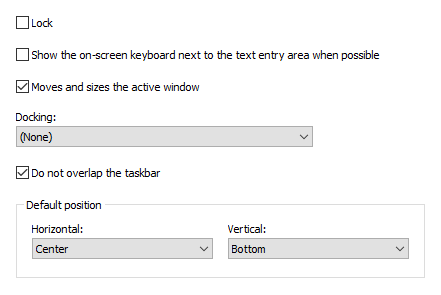
- New "Changes the position of the active window" and "Changes the size of the active window" options have been added. If the active window is under the keyboard, app moves it in view.
- New ability to change icon for the on-screen keyboard in the system tray, the toolbar, the floating window, and floating icon. See new "Icon" field in "Theme" section.
- New "Transparent background" options for the Floating Window and the Floating Icon have been added.
- New "Three finger tap on your touchscreen: Show/Hide" option has been added. Note: Windows 8 and above.
- Improved: The on-screen keyboard better displays some Arabic and Hebrew vowels.
- New 12 flags for languages have been added.
- Improved: Installed keyboards depend on the input languages.
- New "Sort alphabetically" option for the word auto-complete feature has been added.
- The word auto-complete feature has been improved.
- New "Terminate the active program" action in "Window control" section has been added.
Version 7.2 (released December 2, 2014)
- New: The order of words in the word autocomplete window depends on the statistics accumulated by application. The application initially has predefined data on word frequency and word order for the most popular languages. These data are stored in the Common subfolder. When you type any text, the application memorizes the words that you use, so that later it can place the most frequently used ones in the beginning of the list. Which words are suggested also depends on the previously typed text.
- New: The ability to set a label to an action assigned to a hotkey has been added.
- Improved: Text cursor position tracking has been enhanced.
- Improved: The detection of password entry in the active field has been improved.
- New: Gestures support has been improved. Now the user can assign various actions to gestures.
- New: An option named "Hide the on-screen keyboard when typing on a physical keyboard" has been added. It works as follows: The on-screen keyboard disappears when the user presses a key on the physical keyboard. The on-screen keyboard appears again when the user touches the touchscreen, or calls the on-screen keyboard by pressing a hotkey or clicking the keyboard icon.
- New "Pinch or stretch to zoom when using a touchscreen" option has been added. To zoom in or out, touch the on-screen keyboard with two fingers, and then move the fingers toward each other (pinch) or away from each other (stretch).
- New "Touch with two fingers to move" option has been added. To move the on-screen keyboard, touch it with two fingers, and then move in the same direction.
- New: A volume control has been added in the "Sounds" section of the Options dialog box.
- New command line parameters for the application have been added: /HELP and /?. They instruct the application to display the list of accepted command line parameters in a message box, and then exit.
- Improved: Compatibility with 64-bit versions of Windows has been improved. New files has been added: KeysCm64.exe, CKeysH64.dll.
- Improved: Compatibility with Windows 8, Windows 8.1, and Windows 10 has been improved.
- Improved: Touchscreen support has been improved.
- Improved: "Show the on-screen keyboard when the text cursor is visible" option can work together with "Auto Hide" option now.
- Improved: The order of on-screen keyboard settings has been changed.
- Improved: When saved settings are loaded, the toolbar's state is restored.
- Improved: An option to disable the Tablet PC Input Panel has been added for Windows 7.
- Improved: Detection of active window change by clipboard manager has been improved.
- Improved: The on-screen keyboard adjusts the animation speed on machines with limited graphics capability.
- Improved: When the keyboard disappears from the screen, it releases the Shift, Alt, Ctrl, and Win keys .
- Improved: The "Move the on-screen keyboard to a screen border" option works only when the on-screen keyboard appears. If the user moves the keyboard to any location on the screen, it will remain at that location until disappears.
- Improved: If the Windows option "Activate a window by hovering over it with the mouse" is on, this option will be temporary disabled when the on-screen keyboard is visible.
- Improved: Compatibility with Google Chrome and Opera has been improved. New extensions have been released.
- New "Trianlgles2" and "StandardLA" keyboards have been added.
- Fixed: Some Arabic characters were displayed incorrectly.
- Fixed: The "Draw a border around a key" option didn't work if the "Color" parameter was set. The "TouchScreenWin8" keyboard has been changed.
- Fixed: On a UK keyboard, two keys were processed in one location.
- Fixed: When the clipboard manager was closed by pressing the Esc key, the previous active window didn't become active.
- Fixed: The problem with disappearing keyboard icon next to the text cursor has been solved.
- Lots of other fixes and improvements.
Version 7.1 (released January 27, 2014)
- Improved DPI Scaling support.
- Improved application icons.
- New large icons have been added.
- New keyboard type: TouchScreenWin8.
- New option "Auto replace" has been added to the template settings.
- New option "Color" for keys has been added: Picture/Color...
- New ability to set the font of the key label has been added.
- Improved: New versions of extensions for Firefox and Chrome have been released.
- New command "MoveTo X,Y" has been added for JavaScript functions.
- Improved: You can combine the calls in JavaScript functions: document.title = SavedTitle + " - HVKeyboard Name Mini - HVKeyboard MoveTo 100,10 - HVKeyboard Show";
- Improved confirmation of templates with a key.
- Improved: The zoom of the keyboard changes when you change the keyboard type. The zoom depends on the screen resolution.
- Improved: Keyboard always provides visual feedback when you touch a key.
- Fixed: The bug that occurred when you touch one key with two fingers.
- Fixed: Issue with incorrect text cursor detection in 64-bit systems.
- Fixed: Sometimes a blank button appears in the taskbar.
- Fixed: The repeat key settings don't work right when you touch the key with Korean language.
- Fixed: Sometimes the keyboard appears briefly even though you launch the process with the /HIDEKEYBOARD command line parameter.
- Fixed: Sometimes keys stay pressed when the PC wakes up from sleep mode.
- Fixed: Issue with saving labels of keys in Unicode.
- General fixes and various minor improvements.
Version 7.0 (released December 6, 2012)
- Lots of improvements for Windows 7 and Windows 8 touch-screen support.
- Comfort Keys Pro has been tested to meet all of the technical requirements to be Windows 8 Compatible.
- Improved: Section "Exceptions" has been replaced with new section "Dependencies". Comfort Keys Pro changes the settings depending on the currently active application.
- New: New function "Show alternate characters or symbols" has been added. Comfort Keys Pro will show alternative characters when you press and hold a key. The selected character is typed when you release the key. The feature doesn't work when the "Enable key repeat" setting is on.
- New: The word suggestion tool now processes the ' character in combinations like I'll, L'amour.
- Improved: Setting "Show the toolbar in the taskbar" has been added for 64-bit systems.
- New: New settings in the keyboard editing window have been added:
- Change "Fit Width" regardless of the program settings,
- Change "Lock Aspect Ratio" regardless of the program settings,
- Always dock the keyboard to the lower edge of the screen,
- Always display characters and icons in the center of keys,
- Always transparent keyboard background,
- Fixed font size for all key labels (if empty, use the one from the program settings),
- Dividing points - used when changing the keyboard size. The keyboard splits along the specified points, the keys slide in opposite directions.
- Improved: Improved the Docking function for full-screen applications (IE in the kiosk mode) and Windows 8.
- Improved: The default settings have been changed.
- Improved: The keyboard editing window has been improved.
- Improved: Color schemes have been slightly adjusted: Summer, Dark, and Night.
- New: New option "Windows 8 Style" in the "Appearance" section - when enabled, rounded corners of windows and buttons are turned off.
- New: The Ctrl+F (switch to the search field) hotkey combination in the clipboard manager has been added.
- New: Ability to backup and restore the clipboard clips has been added.
- New: Ability to change the assigned key combination in window "Keyboard Shortcuts Settings" has been added.
- New: Ability to copy an action in window "Keyboard Shortcuts Settings" has been added.
- New: Fragments of the clipboard can be manipulated as files if you drag them to Windows Explorer, Browser or Paint.
- Improved: The size of word suggestion buttons changes depending on the keyboard font size.
- Improved: The limit for pasting text as keystrokes has been removed. You can interrupt pasting with Escape key.
- New: Added special keyboard type for touch screens - TouchScreen.
- New: Flag for Thai language has been added.
- New: Slovak interface language has been added.
- Fixed: The bug that occurred when switching the input language to extended layouts has been fixed.
- Fixed: The incorrect positioning of characters in the Japanese Hiragana, Kana layout has been fixed.
- Code optimization and various minor improvements.