


Keys
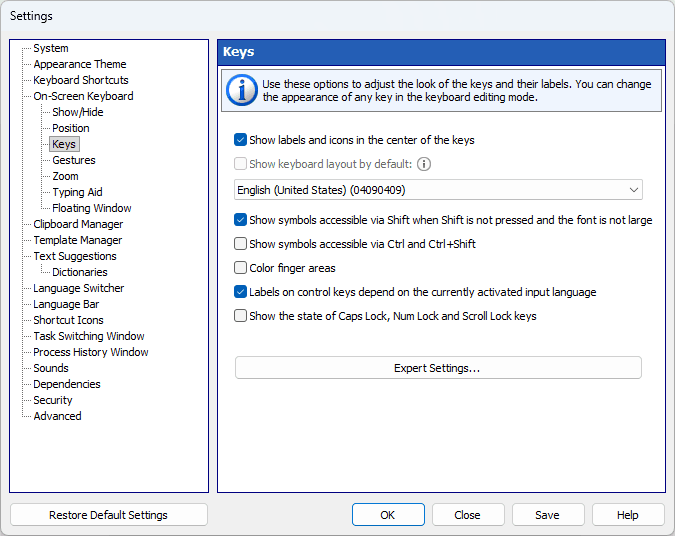
Use these settings to adjust the look of keys and their labels. You can change the appearance of any key in the keyboard editing mode.
Show icons on control keys
Enter, Tab, Caps Lock and Shift show an icon instead of their name when the name does not fit the width of the key. With this option on, the icon is shown always.
Show labels and icons in the center of the keys
This option comes in handy if you use only one input language.
Show keyboard layout by default
The layout or language that is used to display key names in the upper-left corner.
Show symbols accessible via Shift when Shift is not pressed and the font is not large
If the key size and font allow, all numerical keys will contain characters that are typed in combination with the Shift key.
Show symbols accessible via AltGr
This option prints the third-level character, the one typed with AltGr, in the bottom-right corner of the key.
Show symbols accessible via Ctrl and Ctrl+Shift
This option lets you display the characters that become available when you press Ctrl or Ctrl+Shift. As a rule, such key combinations are not used for text entry.
Labels on control keys depend on the currently activated input language
You can change the labels displayed on these keys: Backspace, Tab, Enter, Shift, Ctrl, Alt, AltGr, Pause, Esc, PgUp, PgDn, End, Home, Arrows, PrtScr, Ins, Del, Apps, Win, Caps Lock, Num Lock, and Scroll Lock.
Show the state of Caps Lock, Num Lock and Scroll Lock keys
This option lets you display these keys as pressed if the respective mode is on (that is, if the respective indicator is lit on the physical keyboard).
Align labels on control keys to the left or right edge
Labels and icons on wide control keys (Tab, Caps Lock, Shift, Enter, Backspace) are moved toward the nearest side of the keyboard, as on the Windows 11 touch keyboard: to the left edge on the left half of the keyboard and to the right edge on the right half. Narrow keys keep their labels in the center. The option applies when labels and icons are shown in the center of the keys.