


Editing templates
Comfort Keys Suite lets you assign keywords for frequently used phrases.
Comfort Keys Suite constantly monitors your keyboard for any keywords and instantly replaces them with predefined text.
A set of templates is made as a simple list. There are two types of templates: Plain text and RTF. Each type is used for its own purpose.
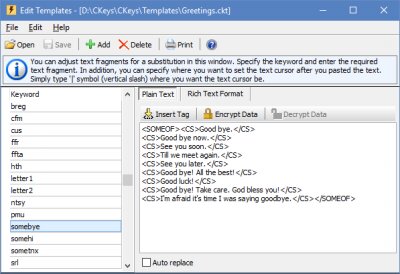
Plain text
This template type is used for text without formatting. You can add various tags to templates of this type. See how to use macros in the Text tags section.
You can specify the position of the text cursor after the text is pasted by placing | (the pipe character) there.
You can protect your data with strong 448-bit Blowfish encryption, so that nobody can access it without knowing your password.
RTF (Rich Text Format)
This template type is used for formatted text. If you try to paste formatted text into an application that doesn’t support formatting, plain text will be pasted. If you need additional features for formatting your text, you can use more powerful tools, such as MS Word, to format the text, and then paste it to the template.
Here you can also specify the position of the text cursor after pasting the text, just like for the plain text format.
If you need to use small images in text editors, mail clients, etc., choose RTF. In this case, the images will be stored in the template database.
Find:
The box above the list filters the templates as you type: it looks both at the keyword and at the text of the template.
Characters in a keyword
A keyword is ended only by a space, by a quotation mark (straight or typographic) or by one of the characters . , ! ? ; ) ] }. Other special characters, such as # $ / \, belong to the keyword and no longer break it as you type.
If a keyword contains a character that cannot be typed, the program warns you. Such a template still works, but it can only be pasted from the template manager window.
Tips and tricks
| • | You can configure several sets of templates. To open another template file, click the File menu, and then click Open. |