Ηλεκτρονική βοήθεια

Introducing Comfort Keys Suite
How to buy Comfort Keys Suite
How to use Comfort Keys Suite
Keyboard shortcuts settings
Working with template manager
Working with clipboard manager
Using the on-screen keyboard
Controlling the input language
Customizing the keyboard type
Editing templates
Text tags
Editing shortcut icons
Action types
Run a program; open a document or folder
Open one or several Internet resources
Paste text
Play a keystroke macro
Comfort Keys Suite actions
Audio control
Monitor control
Window control
Perform a system action
Change the language or case
Lock/Restart/Shutdown
Block key or shortcut
Replace key or shortcut
Settings
System
Appearance Theme
Keyboard Shortcuts
On-Screen Keyboard
Show/Hide
Position
Keys
Gestures
Zoom
Typing Aid
Floating Window
Clipboard Manager
Template Manager
Text Suggestions
Language Switcher
Language Bar
Shortcut Icons
Sounds
Dependencies
Security
Advanced
Development
How to show, hide, move, or resize the on-screen keyboard
How to lock all settings
How to activate different keyboards
FAQ for developers
Command line parameters
Other issues
FAQ - Frequently asked questions

Gestures

Gestures


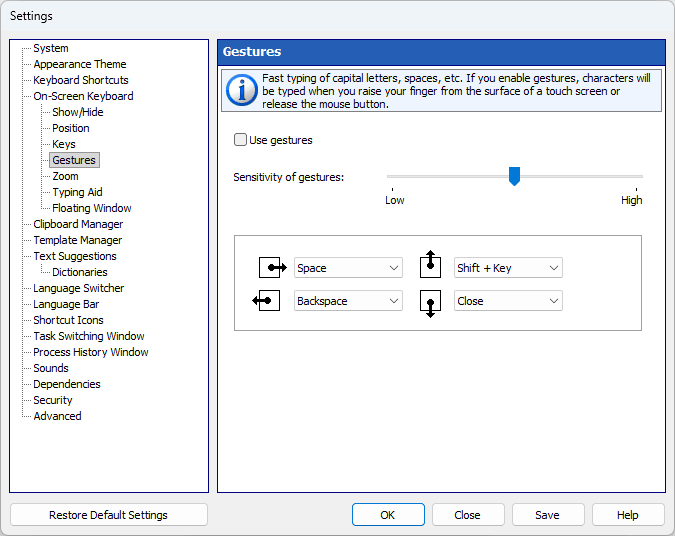
Gestures support (to quickly enter capital letters, spaces, etc.) with adjustable sensitivity:
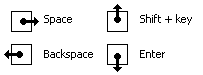
gestures


If you check the Use gestures checkbox, characters will be entered when you raise your finger from the surface of a touchscreen or release the mouse button. Otherwise characters will be entered as you type, just like when you use a regular keyboard.


You can use a mouse or your fingers to perform a gesture:

•Touchscreen: Touch the screen with one finger and move it a short distance.
•Mouse: Mouse gestures work by holding the left mouse button, moving the mouse in a certain direction, then releasing the button.

You can modify actions for each swipe type, or disable only some of them by selecting the (None) item.


Note: This feature doesn't work if the Enable key repeat option is on.


You can specify gestures for any of the following actions:

•Any key by its name (for example, Space or Backspace)
•Shift + Key
•Ctrl + Key
•Alt + Key
•Delete word to left
•Delete word to right
•Ctrl + Home
•Ctrl + End
•Ctrl + Z (Undo)
•Move the on-screen keyboard to a screen border
•Close
•Text suggestions On/Off
•Move the caret left one word
•Move the caret right one word
•Switch the input language or layout
•Show settings
