


Position
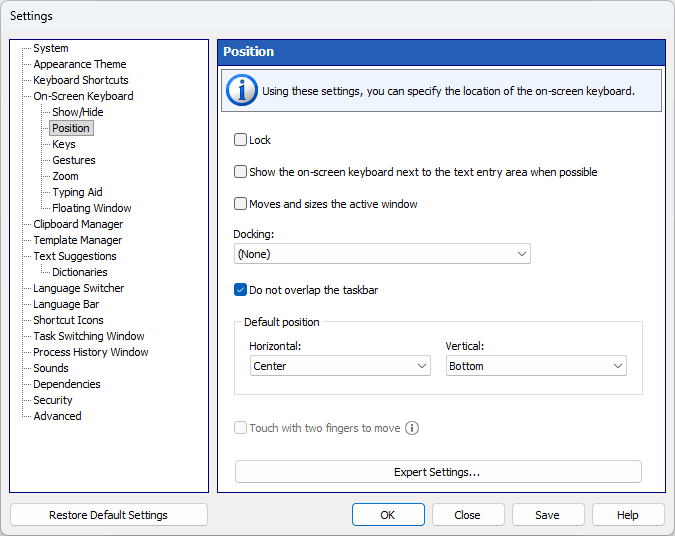
Using these settings, you can specify the location of the on-screen keyboard.
Lock
Prevents the keyboard from moving.
Show the on-screen keyboard next to the text entry area when possible
Some applications draw the text cursor in their own way and do not provide information about its position (these are Firefox, OpenOffice, CorelDRAW, etc.). In this case, the keyboard will be shown at the bottom of the screen.
Note: This feature doesn't work when you set the Docking setting.
Moves and sizes the active window
If the active window sits under the on-screen keyboard, Comfort Keys Suite resizes and moves it so it stays in view. Unlike the Docking setting, it only resizes and moves the active window, and it cannot resize a web browser running in kiosk mode.
Docking
You can dock the keyboard at the top or bottom of the screen. If you dock the keyboard, the available desktop space will be reduced. Other applications’ windows and desktop icons will be rearranged to adjust to the change.
Default position
When the on-screen keyboard appears, it will be automatically moved to the specified position (even if it had been moved elsewhere). If the user moves the keyboard to any location on the screen, it will remain at that location until it disappears.
You can change this setting for any keyboard in the Edit Keyboard Type window. So your keyboards will have different positions on the screen when you switch between them.
The keyboard position changes even if the Lock setting is set.
Do not overlap the taskbar
The taskbar is taken into account when moving the keyboard to the edge of the screen if this setting is enabled.
Move the keyboard away from the Start menu
While the Start menu is open, the on-screen keyboard steps aside so that the two do not overlap, and it returns to its place as soon as the menu closes.
If the keyboard covers the text cursor
This list tells the program what to do when the on-screen keyboard covers the text cursor:
“Don't move” - the keyboard stays where it is.
“Move the keyboard away from the text cursor” - the keyboard steps aside so that the text cursor stays visible. This is the behavior of the previous versions, and it is still the default.
“Transparency 10%” ... “Transparency 90%” - the keyboard becomes transparent, so you can see the text cursor through it.
The keyboard stays transparent while the text cursor is under it, whether you type or click, and returns to its normal transparency as soon as the cursor is clear of it.
Note: This list is not available when “Show the on-screen keyboard next to the text entry area when possible” is checked or when the keyboard is docked.
Note: This list replaces the hidden “KeyboardSideLock” option of the previous versions. A keyboard that had that option turned on comes back with “Don't move” selected.
Touch with two fingers to move
To move the on-screen keyboard, touch it with two fingers, and move them in the same direction. Note: Windows 7 and above.