Gestures
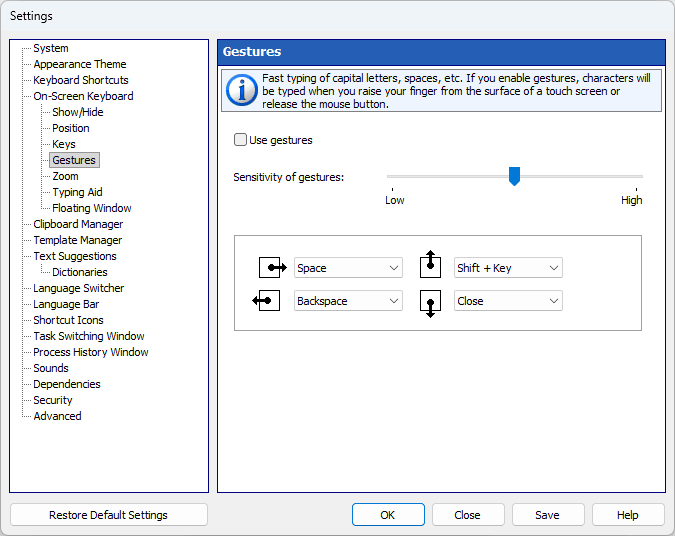
Gestures support (to quickly enter capital letters, spaces, etc.) with adjustable sensitivity:
If you check the Use gestures checkbox, characters will be entered when you raise your finger from the surface of a touchscreen or release the mouse button. Otherwise characters will be entered as you type, just like when you use a regular keyboard.
You can use a mouse or your fingers to perform a gesture:
| • | Touchscreen: Touch the screen with one finger and move it a short distance. |
| • | Mouse: Mouse gestures work by holding the left mouse button, moving the mouse in a certain direction, then releasing the button. |
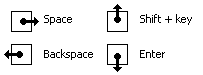
You can modify actions for each swipe type, or disable only some of them by selecting the (None) item.
Note: This feature doesn't work if the Enable key repeat option is on.
You can specify gestures for any of the following actions:
| • | Any key by its name (for example, Space or Backspace) |
| • | Move the on-screen keyboard to a screen border |
| • | Move the caret left one word |
| • | Move the caret right one word |
| • | Switch the input language or layout |



