


Floating Window
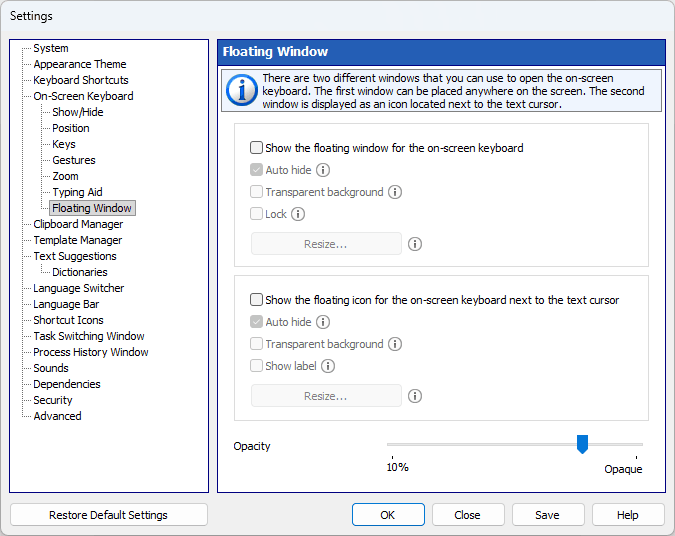
There are two different windows that you can use to open the on-screen keyboard.
The first window, which can be placed anywhere on the screen, allows you to show or hide the on-screen keyboard.
The second window is displayed as an icon located next to the text cursor. If there is no text cursor on the screen, this window will not be shown.
You can resize any of these windows, adjust their transparency, or make them automatically disappear when the keyboard is displayed on the screen.
Show the floating window for the on-screen keyboard
If this checkbox is checked, the first window - a movable button that shows or hides the on-screen keyboard - is displayed on the screen.
Auto hide
You can hide these windows when the on-screen keyboard is visible, and show them when the keyboard is hidden.
Transparent background
Show icon and label only.
Lock
Prevents the floating window from moving.
Resize...
Opens a window where you set the size of the floating window or of the floating icon. Each of the two groups has its own “Resize...” button.
Show the floating icon for the on-screen keyboard next to the text cursor
You can make a floating icon appear automatically when you tap a screen location where you want to insert your text. To open the on-screen keyboard, tap the floating icon.
Some applications draw the text cursor in their own way and do not provide information about its position. (These are Firefox, Google Chrome, OpenOffice, CorelDRAW, etc.) In this case, the floating icon will not be shown.
Show label
Shows a text label next to the floating icon.
Transparency
This slider adjusts the transparency of both windows.
Note: You can change the settings of the floating window via its context menu.