
Online súgó

Introducing Comfort Keys Suite
How to buy Comfort Keys Suite
How to use Comfort Keys Suite
Keyboard shortcuts settings
Working with template manager
Working with clipboard manager
Using the on-screen keyboard
Controlling the input language
Customizing the keyboard type
Editing templates
Text tags
Editing shortcut icons
Action types
Run a program; open a document or folder
Open one or several Internet resources
Paste text
Play a keystroke macro
Comfort Keys Suite actions
Audio control
Monitor control
Window control
Perform a system action
Change the language or case
Lock/Restart/Shutdown
Block key or shortcut
Replace key or shortcut
Settings
System
Appearance Theme
Keyboard Shortcuts
On-Screen Keyboard
Show/Hide
Position
Keys
Gestures
Zoom
Typing Aid
Floating Window
Clipboard Manager
Template Manager
Text Suggestions
Language Switcher
Language Bar
Shortcut Icons
Sounds
Dependencies
Security
Advanced
Development
How to show, hide, move, or resize the on-screen keyboard
How to lock all settings
How to activate different keyboards
FAQ for developers
Command line parameters
Other issues
FAQ - Frequently asked questions

Keyboard Shortcuts

Keyboard Shortcuts


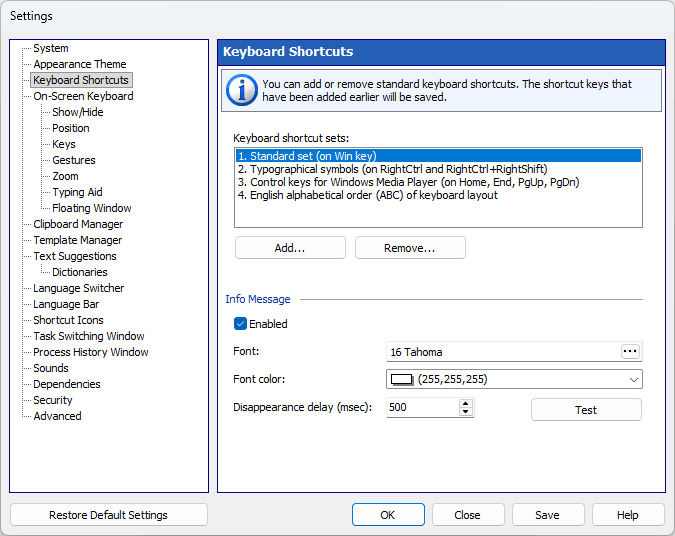
You can add or remove standard keyboard shortcut sets. The shortcut keys that have been added earlier will be preserved.


Keyboard shortcuts work in all applications. For more details, see the Keyboard shortcuts settings section.


Please note that when you are specifying keyboard shortcuts, the left and right control keys (Shift, Ctrl, Alt, or Win) are processed differently. To use only the right Shift, Ctrl, Alt, or Win key in a keyboard shortcut, press the respective right key. To use both (right and left) keys, press the respective left key.


Info Message

The info message is a brief on-screen note that appears when you press a keyboard shortcut of Comfort Keys Suite. “Enabled” turns the message on, “Font” and “Font color” set its look, “Disappearance delay (msec)” sets how long it stays on screen, and “Test” shows a sample message.