
Çevrimiçi Yardım

Introducing Comfort On-Screen Keyboard Pro
How to buy Comfort On-Screen Keyboard Pro
How to use Comfort On-Screen Keyboard Pro
Using the on-screen keyboard
Customizing the keyboard type
Editing shortcut icons
Settings
System
Appearance Theme
Keyboard Shortcuts
On-Screen Keyboard
Show/Hide
Position
Keys
Gestures
Zoom
Typing Aid
Floating Window
Text Suggestions
Language Bar
Shortcut Icons
Sounds
Dependencies
Security
Advanced
Development
How to show, hide, move, or resize the on-screen keyboard
How to lock all settings
How to activate different keyboards
FAQ for developers
Command line parameters
Other issues
FAQ - Frequently asked questions

Settings

When developing Comfort On-Screen Keyboard Pro, we tried to keep the number of optional settings to a minimum, leaving only those that are truly necessary.


To open the Settings dialog box, right-click the Comfort On-Screen Keyboard Pro icon in the system tray and select the Settings item in the context menu.
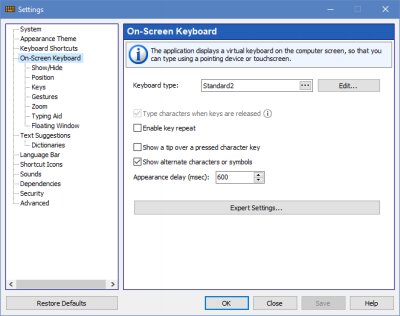

optionskb


The buttons at the bottom of the window are common for all pages: “Restore Default Settings” resets the settings to their default values, “Save” applies the changes without closing the window, “OK” applies them and closes the window, “Close” closes the window without applying unsaved changes, and “Help” opens the help topic for the current page.