


System
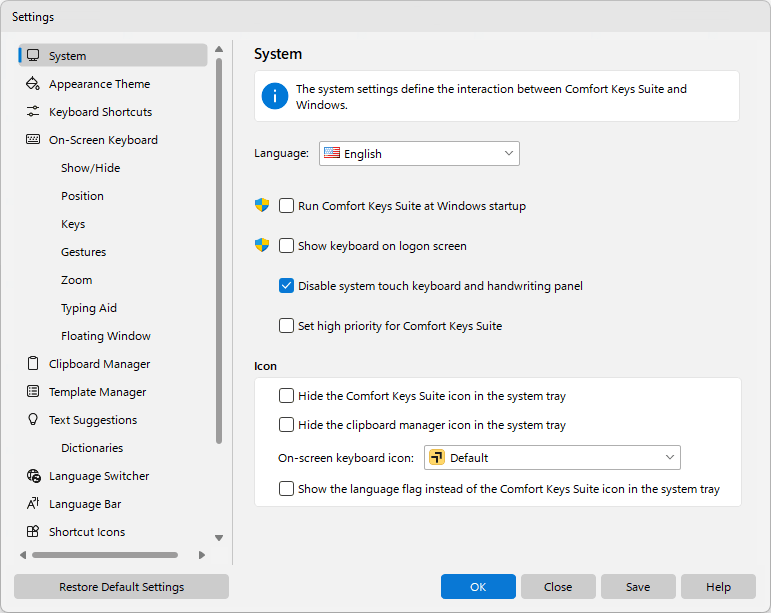
The system settings define the interaction between Comfort On-Screen Keyboard Pro and Windows.
Language
The language of the Comfort On-Screen Keyboard Pro user interface. To change the language of the on-screen keyboard, install another language or keyboard layout in your system.
Run Comfort On-Screen Keyboard Pro at Windows startup
If you check this checkbox, Comfort On-Screen Keyboard Pro will be automatically launched when the system is started.
Show keyboard on logon screen
If you check this checkbox, the on-screen keyboard will be shown before any user logs into the system. A separate instance of the application, possibly with different settings, will be launched for that on-screen keyboard (see the FAQ for developers section).
Disable system touch keyboard and handwriting panel
You can turn off the system Touch Keyboard that appears when you use a touchscreen. Note: Windows 7 and above.
Set high priority for Comfort On-Screen Keyboard Pro
Check this checkbox if any features of Comfort On-Screen Keyboard Pro are unstable on your system.
Show the Comfort On-Screen Keyboard Pro toolbar in the taskbar
Checking this checkbox will add the application’s toolbar with one button onto the taskbar. You can use this button to launch the on-screen keyboard.
Note: Not supported on Windows 11.
Tip: You can place a one-click show/hide button for the on-screen keyboard on the Windows taskbar. Open the program’s installation folder, find the bundled utility ToggleKeyboard.exe, and pin it to the taskbar (right-click the file or its Start-menu shortcut "Show or hide the on-screen keyboard" and choose Pin to taskbar). Clicking the pinned icon afterwards will show the on-screen keyboard if it is hidden, or hide it if it is currently visible - without opening the main program window.
Icon
This group gathers the settings of the icon that the program shows in the system tray, and of the icon that stands for the on-screen keyboard.
Hide the Comfort On-Screen Keyboard Pro icon in the system tray
If this checkbox is checked, the application’s icon will not be shown in the system tray.
On-screen keyboard icon
The icon for the on-screen keyboard in the system tray, the toolbar, the floating window, and floating icon.