


System
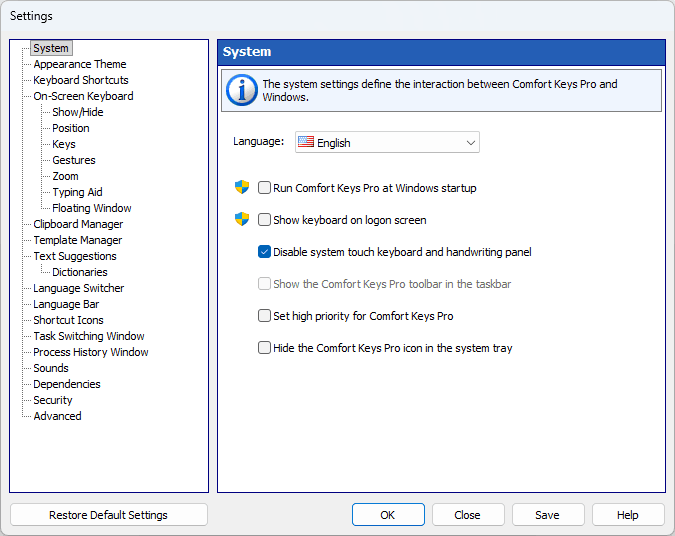
The system settings define the interaction between Comfort Clipboard Pro and Windows.
Language
The language of the Comfort Clipboard Pro user interface.
Run Comfort Clipboard Pro at Windows startup
If you check this checkbox, Comfort Clipboard Pro will be automatically launched when the system is started.
Show the Comfort Clipboard Pro toolbar in the taskbar
Checking this checkbox will add the application’s toolbar with one button onto the taskbar. You can use this button to launch the clipboard manager.
Note: Not supported on Windows 11.
Tip: You can place a one-click show/hide button for the clipboard manager on the Windows taskbar. Open the program’s installation folder, find the bundled utility ToggleClipboard.exe, and pin it to the taskbar (right-click the file or its Start-menu shortcut "Show or hide the clipboard manager" and choose Pin to taskbar). Clicking the pinned icon afterwards will show the clipboard manager window if it is hidden, or hide it if it is currently visible — without opening the main program window.
Set high priority for Comfort Clipboard Pro
Check this checkbox if any features of Comfort Clipboard Pro are unstable on your system.
Hide the Comfort Clipboard Pro icon in the system tray
If this checkbox is checked, the application’s icon will not be shown in the system tray.