


Advanced
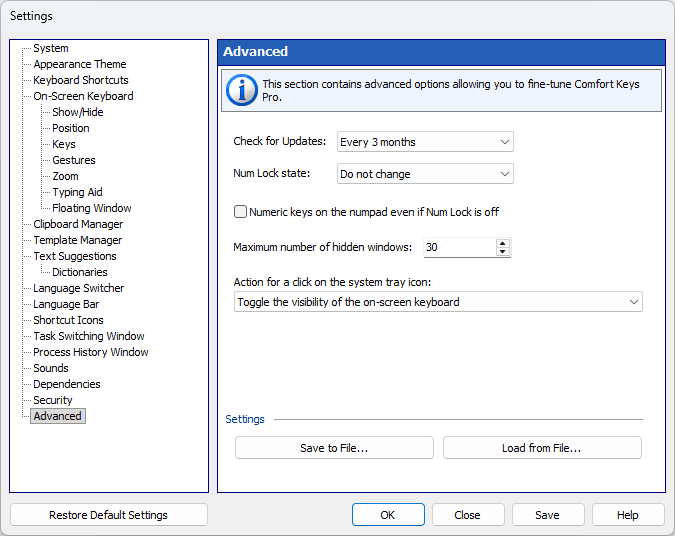
Check for Updates
Scheduled check for updates. To disable checking for updates, select the Disabled item.
Num Lock state
This option lets you keep or change the NumLock state when Comfort On-Screen Keyboard Pro is started.
Numeric keys on the numpad even if Num Lock is off
This option may be handy if you work on a laptop and use both its keyboard and a standard keyboard connected to the laptop. If you turn NumLock on, some letter keys on the laptop keyboard will work as digital keys. If you turn NumLock off, you will be unable to use the NumPad keys on the standard keyboard to enter digits. By checking this checkbox, you can easily overcome the limitation imposed by the NumLock key. With this option on, the Shift key does not affect the NumPad either. The NumPad keys always enter digits, even while Shift is held down.
Save to File...
Click this button to save all settings to the INI file.
Load from File...
Click this button to load all settings from the INI file. You can also load settings from the INI file by using the /RESTORE command line parameter.
Backups
These two buttons pack and restore all the data of the program, not just the settings.
Back Up All Data...
Packs the settings together with the data files (keyboards including your own, key icons, backgrounds, sounds and dictionaries) into a single compressed and signed backup file with the .kbpack extension. The same backup can be created from the command line with the /SAVEPROFILE parameter.
Restore All Data...
Restores everything from a file created by “Back Up All Data...”. The file is checked before it is applied: a backup made by another program of the family, or a damaged one, is refused. The same can be done from the command line with the /APPLYPROFILE parameter. Restoring is not available in the trial version.